
From Friday Deep-Dive · Friday, July 24, 2026 · 7 min read
The first AI feature built for people who work in their car
You know the shape of a sales day: in the car, in a lobby, juggling a coffee and a rate card, hands and eyes almost never free. That’s why every “just open the app and type” AI tool has been useless in the moment you actually needed it. This week that changed — Anthropic rebuilt Claude’s voice mode so it can now use your connected apps while you talk to it. Say “catch me up on my email” and it does; ask “what’s on my calendar at 10 and who am I meeting” and it tells you before you walk in. It officially works with Gmail, Google Calendar, Google Docs, and Slack, runs on your phone (where you’ll actually use it), and — the part worth underlining — you can start on the free plan. Below: five plays for a field rep, the 90-second setup, and a plain table of what each plan gets you.

You know the shape of a sales day better than anyone: you're in the car, in a lobby, crossing a parking lot with a coffee in one hand and a rate card in the other. It's the one job where your hands and eyes are almost never free — which is exactly why every "just open the app and type" AI tool has been useless in the moment you actually needed it.
That changed this week. Anthropic rebuilt Claude's voice mode, and for the first time it can do things while you talk to it — read your email, check your calendar, catch you up on a Slack channel — out loud, hands-free, while you drive to the next call. It's the first AI feature genuinely built for how a salesperson moves through a day.
What actually changed
Two upgrades, both aimed straight at people who work in motion:
- It got smart. Until this week, every spoken question ran through Haiku — Claude's fastest, lightest model. Now voice runs the full lineup: Haiku, Sonnet, and Opus, and you can switch between them mid-conversation. (You pick the family — Opus, Sonnet, or Haiku — not a version number; Claude uses the newest generation automatically.)
- It can use your tools. This is the big one. Claude can now reach your connected apps during a voice conversation — officially Gmail, Google Calendar, Google Docs, and Slack. You don't tap anything. You say "catch me up on my email," and it does. It asks your permission before it opens a tool, then reads you the answer out loud.
Put those together and the assistant finally lives where you work: the driver's seat, not the desk.
Five plays for a rep who lives in the field
1. Follow up before the details fade
You just pulled out of a furniture store after a good sit-down about a fall insert. Before the specifics blur, you tap voice and say: "Pull up my last email thread with Dave at Prairie Home and draft a follow-up recapping the fall insert rate and the two ad sizes we discussed." Claude reads the thread back, drafts the recap, and you tighten it at the next red light. Tool: Gmail. Works on: Free.
2. A 60-second brief walking in the door
You booked a 10 a.m. with a car dealership two weeks ago and can't quite recall where you left it. Crossing the lot, you ask: "What's on my calendar at 10 — remind me who I'm meeting and what we talked about last time." You walk in knowing the GM's name and what you promised. Tool: Google Calendar. Works on: Free.
3. Log the pipeline note before it's gone
You finish a coffee with a prospective restaurant advertiser and, still standing on the sidewalk, talk it out: "Open my Prospects doc and add: Corner Cafe, wants a quarter-page in the dining guide, budget about $600, owner Maria decides, follow up after the 15th." It's captured before you're back in the car — no end-of-day memory dump. Tool: Google Docs. Works on: Free.
4. Morning Slack triage over breakfast
It's 7:45 and you've got a full slate of calls. You ask: "Catch me up on anything in Slack about ad proofs or production due today." Claude summarizes the ad-ops channel so you know which advertiser proofs are stuck before you promise anyone a run date. Tool: Slack. Works on: Free.
5. Between-meeting prep that pulls two tools at once
Fifteen minutes between accounts. You say: "Check my next meeting, then find the last email thread with that advertiser and tell me where we left off." Claude reads your calendar, finds the matching Gmail thread, and hands you the state of play — two tools, one spoken request. Tools: Calendar + Gmail. Works on: a paid plan (combining more than one tool at a time is the one thing Free can't do).
How to set it up (in plain English)
There's a part I have to be straight about, because it trips everyone up: before Claude can read your email or check your calendar, you have to introduce it to those apps once. If you skip this and just ask "check my email," voice mode will politely tell you it can't yet. So do this first — it takes about two minutes, and you never do it again.
1 Let Claude see your app (one time)
Open Claude on your phone or computer, open Customize, and choose Connectors (Anthropic recently moved these out of Settings, so that's where they live now). Think of "connectors" as the list of apps you've given Claude permission to look at. Find Gmail (or Google Calendar, Google Docs, or Slack), tap Connect, and sign in to your Google account when it asks — the same sign-in you already use every day.
You'll then see a screen listing what Claude is allowed to do, and here's the reassuring part: reading your email is allowed automatically, but anything that would change, send, or delete a message asks your permission first. Claude can look all it wants; it can't touch a thing without checking with you. Tap to approve, and you're set.
(On the Free plan you connect one app. On a paid plan, connect them all.)
2 Turn on voice and start talking
Now open a new chat and switch voice on:
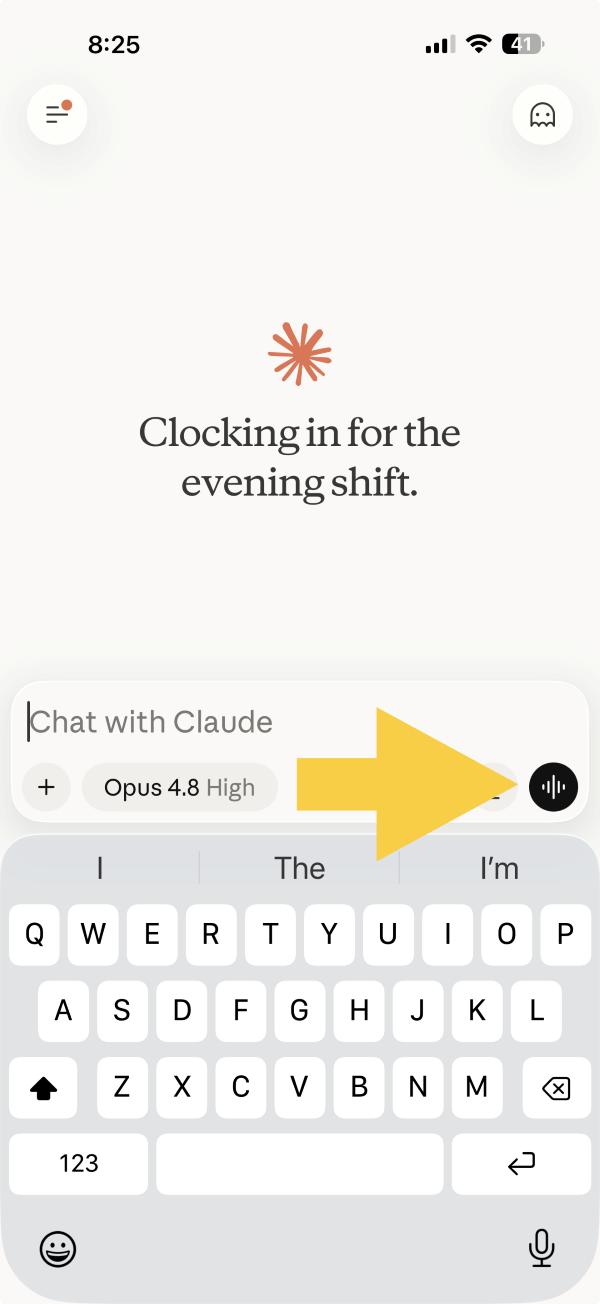
- On your phone — tap the sound-wave icon next to the microphone in the message box. (This is where you'll use it most.)
- On a computer or the web — click the sound-wave symbol in the lower-right corner of the window.
Pick a voice the first time, then just talk. Ask the way you'd ask a coworker — "catch me up on my email" — and because you connected it in Step 1, Claude can actually go do it. The first time it reaches into an app during a conversation it double-checks with you; after that, it just goes.
Best on a phone. It runs on desktop and the web too, but Anthropic says voice works best on a phone — which is right where a rep lives anyway.
What plan do you need?
Here's the honest breakdown — and the good news is you can try the whole thing free:
| Your plan | Voice models | Connected tools |
|---|---|---|
| Free | Haiku (fast and capable) | One — pick Gmail or Calendar or Slack or Docs |
| Pro / Max / Team | The full picker — Haiku, Sonnet, Opus, switch mid-call | All your connected tools, together |
A few things worth knowing:
- There's no separate charge for voice. It draws on your plan's normal usage, so talking to Claude doesn't cost you anything extra.
- Free gets you surprisingly far — four of the five plays above run on a single tool. If your day is mostly "check my email" or "check my calendar," Free is enough to start today.
- The paid jump is about combining tools and sharper drafting. If you want Claude pulling your calendar and your inbox in the same breath (play #5), or Opus-level polish on that follow-up email, that's a paid plan — and Pro is plenty. Max just buys more overall usage, not extra voice features.
One honest caveat
This is a public beta — brand new, free to try, and still changing. It shipped this week; buttons may move, and it runs better on some days and devices than others. Use it now for the first-mover edge, but don't bet a live deadline on it yet.
Why this one matters
Most AI tools ask you to stop what you're doing, sit down, and type. That's fine for the person at a desk — and useless for the person who closes deals in a car. This is the first version that meets a salesperson where the work actually happens: hands on the wheel, mind on the next call, an assistant handling the email and the calendar so you walk in sharp. The reps who make that a habit are going to get an hour of their day back. The rest will still be typing recaps at 6 p.m.
Your voice cheat sheet (screenshot this)
Connect the app once (Customize → Connectors), turn on voice (the sound-wave icon), then just say the word:
| When you want to… | Say something like… | Needs |
|---|---|---|
| Recap a call you just left | "Pull up my last email thread with [name] and draft a follow-up about [what you discussed]." | Gmail · Free |
| Prep 60 seconds before a meeting | "What's on my calendar at [time] — who am I meeting, and what did we cover last time?" | Calendar · Free |
| Log a lead before you forget | "Open my Prospects doc and add: [advertiser], wants [ad size], budget [$], [name] decides, follow up [date]." | Google Docs · Free |
| Triage your morning | "Catch me up on anything in Slack about ad proofs or deadlines today." | Slack · Free |
| Prep with two tools at once | "Check my next meeting, then find the last email thread with that advertiser and tell me where we left off." | Calendar + Gmail · Paid |
One thing to remember: reading is automatic, but Claude asks before it sends, changes, or deletes anything.
Try this and tell me what happened.
Did it work? Hit reply. Did it come back sounding like a stranger? Hit reply harder. That’s the interesting failure, and it’s almost always fixable.
Get the next one in your inbox
Tuesday brief + Friday deep-dive. Free. Unsubscribe anytime.
Subscribe — free, twice weekly